
We have a new look to our booking!
We’ve given our booking page a fresh new look! We redesigned the platform to be more intuitive and mobile-friendly for everyone, while adding even more flexibility for our member bookings.
How to Create a Reservation
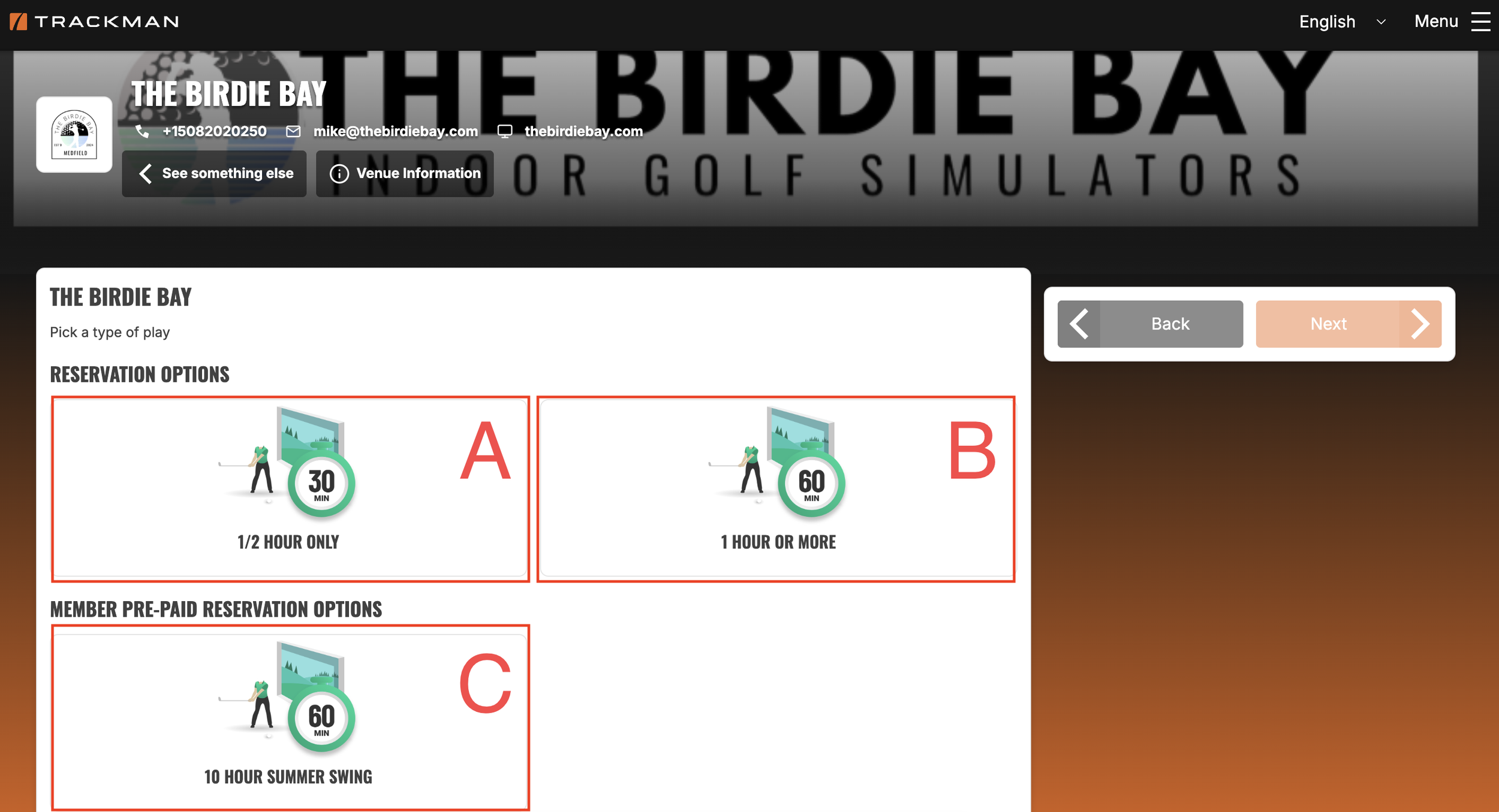
Begin by selecting a reservation option. Options are available in half hour reservations (A), or reservations for a duration of an hour or more (B).
If you have joined one of our pre-paid member programs you will see that additional reservation option under “Member Pre-Paid Reservation Options” (C).
Member options are now bookable in half hour increments as well, no more restrictive booking!
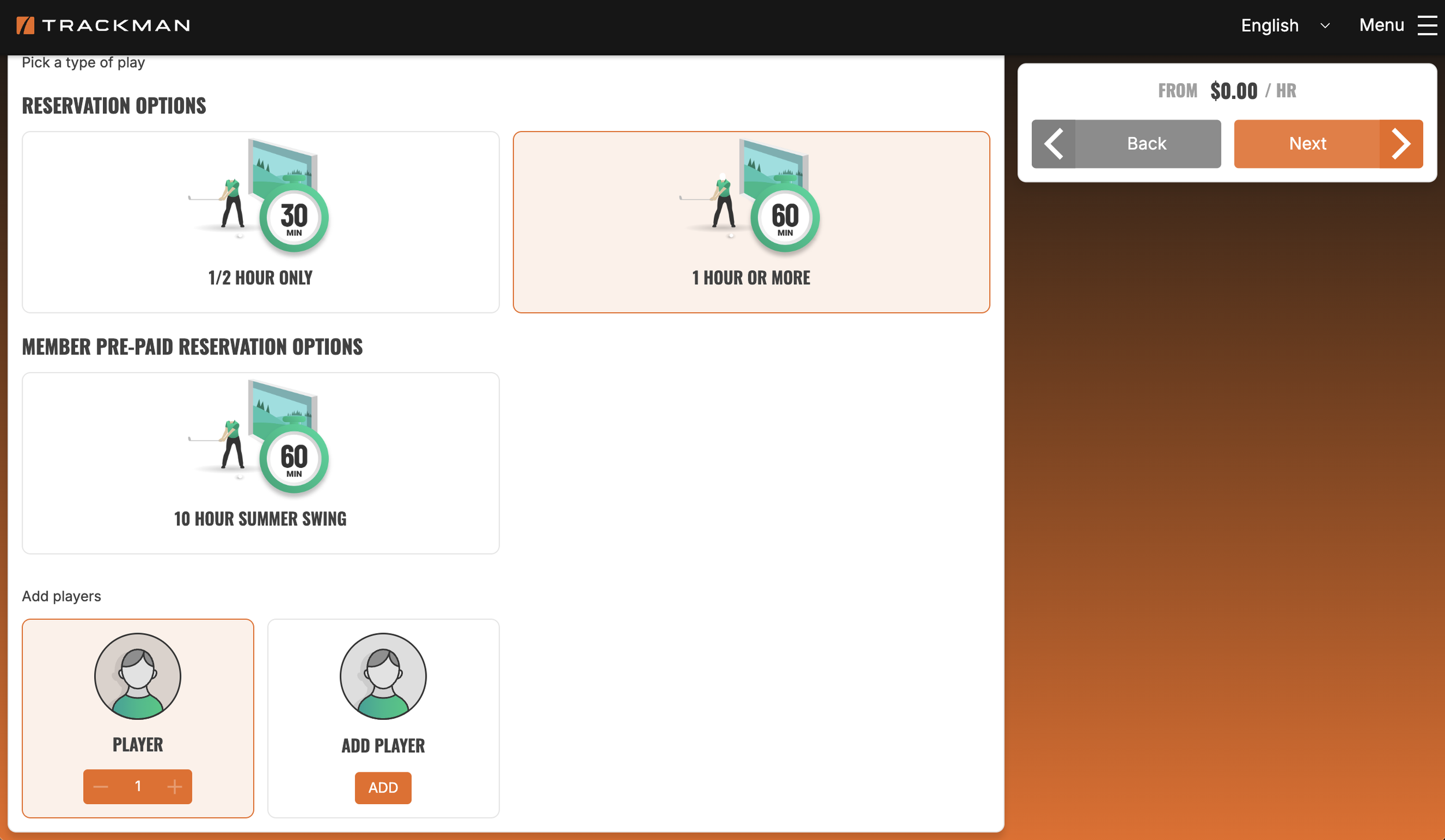
After you have selected a reservation option, you will be prompted to select yourself as a player, as well as add any additional players to your reservation. Click "Next" to proceed!
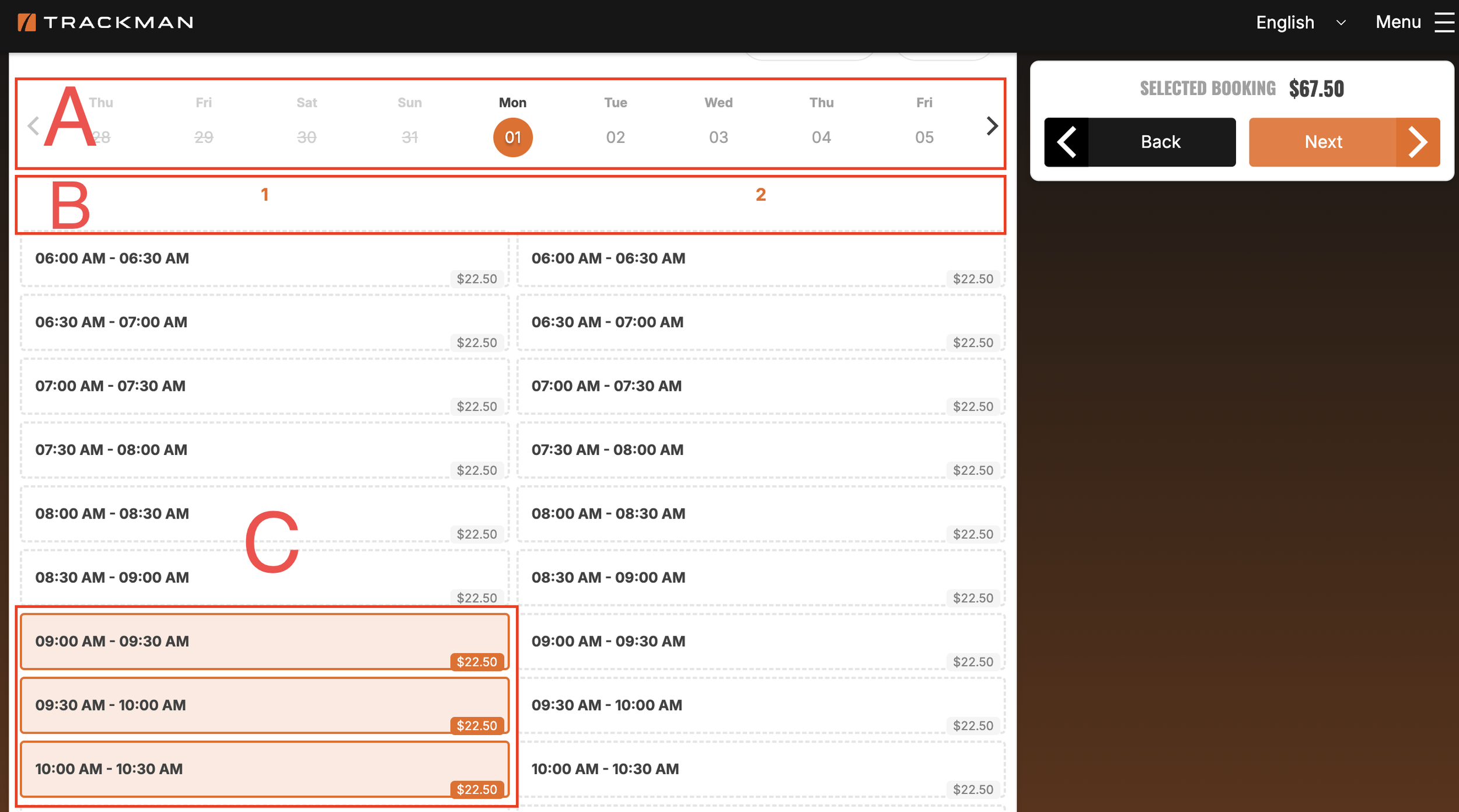
Next, select the date (A), and under the column for the bay you would like to use (B), select the time block you would like to reserve (C). Click Next to continue to review your order or add more to it.
In the example shown we have selected Monday June 1, in Bay 1 at 9:00 - 10:30 AM
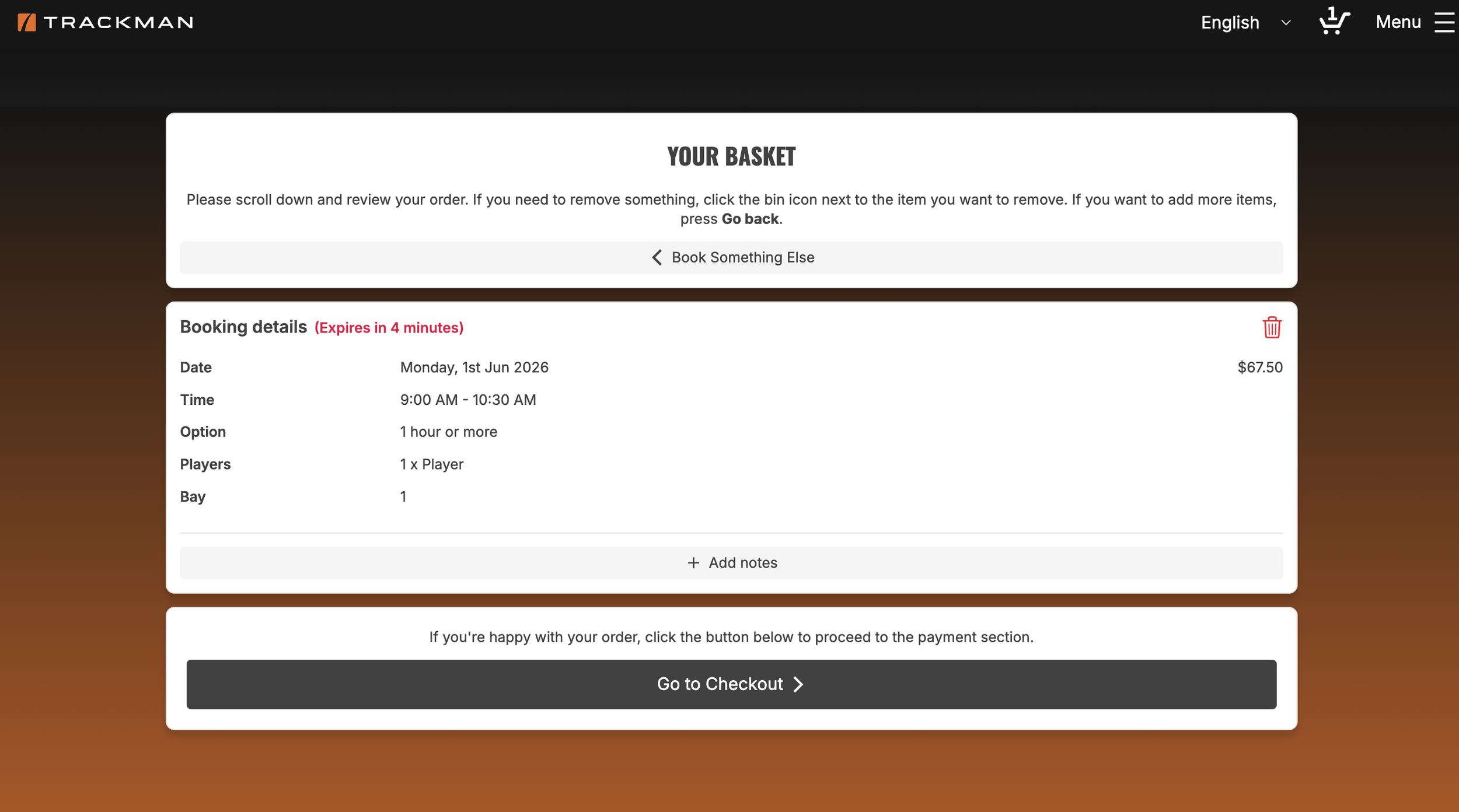
Review that everything looks right, then click “Go to Checkout” to finalize your reservation!
Remember that you will receive an email from customerservice@thebirdiebay.com with all of your access and parking information as well as a brief tutorial video to get you started with the software if it’s you first time using the Trackman Performance Studio!
We hope you enjoy the new reservation experience and, as always, thank you for choosing The Birdie Bay as your indoor golf destination!